What it does
ReminderMAP adds the planning fields that a list lacks while leaving your tasks in Apple Reminders. Each feature below is marked Free or Paid. The free features have no time limit.
01
The map
Free
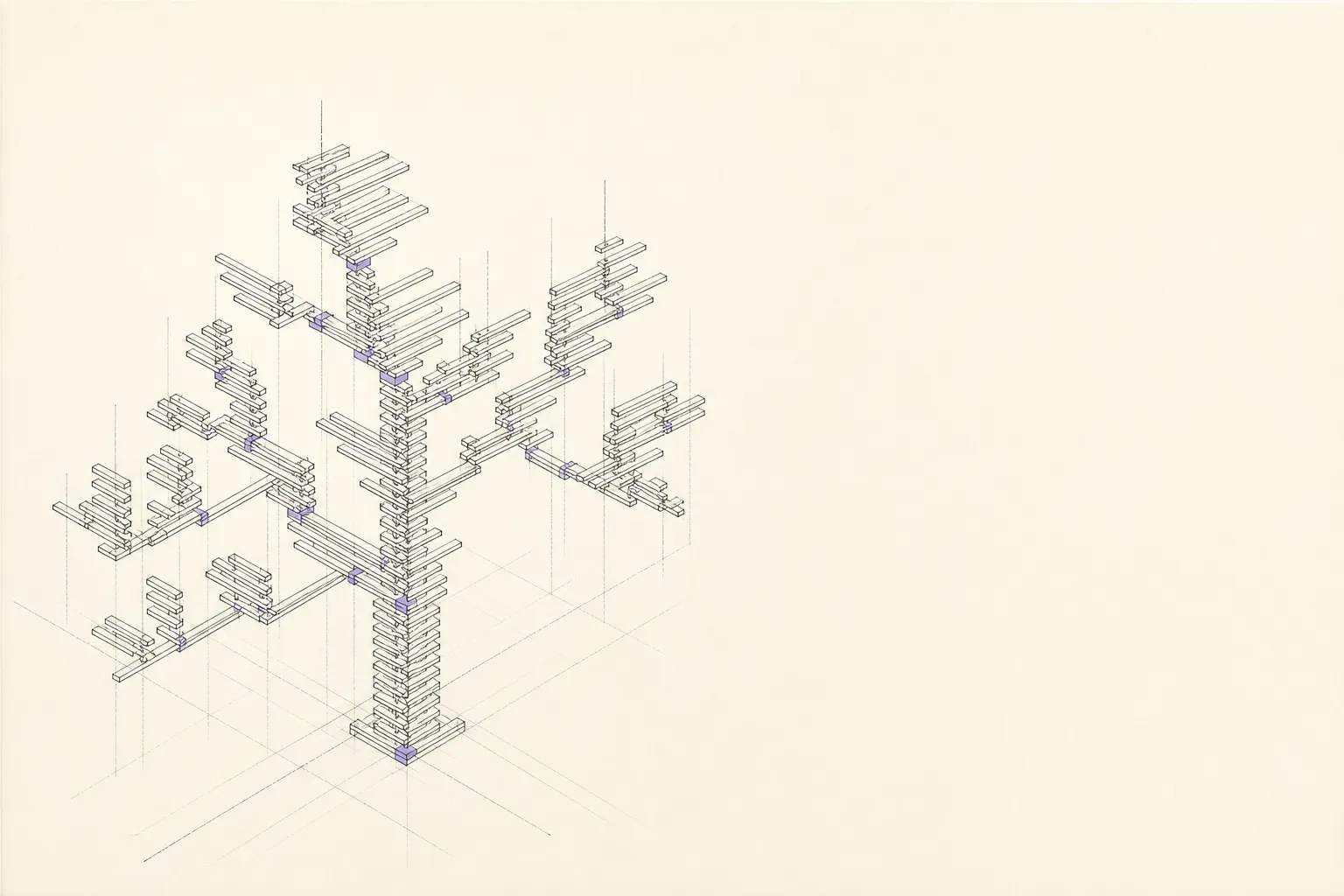
Open the app and your existing reminders appear on a map. Groups can nest as deeply as the work requires. Drag a task to move it. The canvas scrolls sideways, keeping long branches visible.
Zoom, search, undo and redo use familiar Mac controls. You can create as many groups as you need, and the entire map is free.
02
Columns, and groups that cross lists
Free
Split work into columns within a list, or pull tasks from different lists into one group. Apple Reminders cannot store either arrangement because its API has no group field.
If you keep one list per client, this is the feature you came for. One group can hold this week from every client at once, and nothing moves in Reminders. Each task stays in the list it came from, still syncing through iCloud, still reachable from Siri.
03
Four states, including stuck
Paid
Todo, doing, stuck and parked. A stuck task can include what it is waiting on. Moving a due date in a plain list loses that reason and makes the task look late.
Colour follows state up the tree. A group turns red when something under it is stuck, so you find the problem before reading a single task title.
04
The schedule view
Free, three columns are paid
The same tasks sorted by when they matter instead of by which list they happen to live in. Overdue, due today and next up covering the coming seven days are free.
Doing, stuck and parked are columns derived from the state machine, so they arrive with the subscription. Same for the three cards in the sidebar that count them.
05
What you actually finished
Current month free, history is paid
Completed reminders disappear from the active list. ReminderMAP keeps a monthly record instead.
Completed work is grouped by month, then by list inside the month. A repeating task folds into one line so a daily habit does not bury the things you only did once. The current month is free to look at. Reaching back through your history is paid.
06
Two way sync, with Reminders in charge
Free
Everything goes through EventKit, Apple’s own interface. Change something here and it is in Reminders immediately. Add something with Siri, the Lock Screen, your watch or a Shortcut and it appears on the map.
Reminders stays the source of truth for tasks. Titles, dates, lists and completion live there and keep syncing through iCloud exactly as before. ReminderMAP never touches the Reminders database directly, and it changes a reminder only when you ask it to.
07
Backups and export
Free, permanently
The planning layer is a database file on your Mac. The app backs it up on a schedule, and you choose the backup folder. A folder in iCloud Drive gives you a copy away from the Mac.
Export everything to JSON whenever you like. Export remains free and includes state data after a subscription ends.
08
Keyboard
Free
The full list, also available inside the app under Settings.
| ⌘ + | Zoom in |
|---|---|
| ⌘ - | Zoom out |
| ⌘ 0 | Fit the whole map in the window |
| ⌘ Z | Undo |
| ⌘ ⇧ Z | Redo |
| Tab | Add a subtask under the selected task |
| Enter | Add a task after the selected one |
| Esc | Close the drawer or dialog |
09
Your AI can read the map
Paid
Connect your assistant to the planning layer: groups, states, stuck reasons and completed work. Free servers already provide access to reminders themselves.
One button in Settings copies the block. Send it to a command line AI tool on the same Mac and ask it to connect. The endpoint runs inside the app, listens only on 127.0.0.1 and requires a token. A browser based assistant cannot reach it. When the app closes, the endpoint stops.
For example, an assistant that hits a missing credential or a dependency that will not install can mark the task stuck and record the reason before the session ends.
What it can do
- Read a summary of the whole tree, then drill into any part of it
- Filter tasks by list, group, state or date
- Open one task with its work log
- Pull a month of finished work
- Ask what is due today or this week, in the same columns as the schedule view
- Set states, including stuck with a reason
- Write notes onto a task
- Move tasks into groups, and create groups and tasks
- Set start dates, change due dates and notes
- Mark work complete, which it is told to check with you before doing
What it cannot do
- Delete anything. There is no delete tool of any kind, for tasks or for groups
- Rename a task. The title is what you wrote, and it is also how the app recognises a reminder again after a resync
What holds it back
- Writing is off until you turn it on, once, in Settings
- A full backup of your library is taken before the first write, kept separately from your ordinary backups
- Every change it makes is marked in the work log as done by the AI, and comes back in a single undo
- One batch is capped at fifty tasks, so a runaway instruction cannot rewrite everything at once
10
Languages
The interface follows the language your Mac is set to. There is nothing to configure.